Bitwig Transfer Device - Wave Shaper for Custom Audio Distortion
Bitwig Guide | Apr 17, 2023
The Transfer module in Bitwig 5 is a flexible, drawable wave shaper that lets you edit custom transfer functions to shape and distort audio or other signals in creative ways. It features intuitive options like antialiasing for smoothing, drive control for input gain, and the ability to load or design complex wave shaping curves. Perfect for personalizing distortion effects, it gives you precise control to craft everything from subtle saturation to wild custom transformations.
You can watch the Video on Youtube
- support me on Patreon
Short Overview #
With the transfer module in Bitwig's version 5 grid, I can freely draw and edit a segmented wave shaper to completely customize how my audio or modulation signals are transformed. By adjusting the input drive and shaping the transfer curve, I get hands-on control over everything from subtle soft clipping to extreme and creative distortion shapes. The anti-aliasing feature helps keep things smooth when I introduce lots of steps, and I can even load or save my own curve shapes. It’s a powerful tool for crafting unique distortion effects and shaping sounds in fresh, personal ways.
- The Transfer module is a segmented, drawable wave shaper for Bitwig version 5 Grid, primarily focused on audio signals but can be used for any signal.
- Features include audio input and output, a fully editable transfer function, and several customization tools.
- Users can load custom or predefined shapes, use anti-aliasing to smooth stepped signals, and adjust input gain with the drive knob.
- The initial transfer function is a linear diagonal line, making input equal to output; users can dramatically alter the output by drawing new shapes.
- Wave shaping allows for all kinds of audio mangling, from hard and soft clipping to unique distortion effects.
- Unlike typical saturators that offer limited curve manipulation, the Transfer module allows complete freedom to create and customize complex wave shapes.
- Manipulating the transfer curve enables users to craft anything from subtle saturation to extreme audio distortion and unique transformations.
- Adjusting the drive/input gain affects how aggressively the input signal interacts with the transfer function shape.
- The module is ideal for creating custom distortion effects and experimenting with creative signal processing.
Overview of the Transfer Module in Bitwig 5 #
In this video, I explore the "Transfer" module, a freely drawable segmented waveshaper included in Bitwig Studio version 5. Designed primarily for audio-rate signals, although not limited to them, this tool allows us to create, modify, and experiment with custom wave-shaping and distortion effects directly within the grid environment.
Basic Elements and Interface #
The Transfer module features a few key components:
- Audio Input and Output: Route any signal through the device, whether it is audio or modulation, even though the main focus is on audio-rate material.
- Transfer Function Display: The centerpiece is a drawable curve (transfer function) that maps the input signal to the output. I can interactively edit this curve by adding or removing points, reshaping the way input signals are transformed.
- Predefined and Custom Shapes: There is an option to load predefined shapes or your own saved ones using the folder icon, making repetitive processes easier and enabling experimentation with established waveshaping curves.
Anti-Aliasing Functionality #
One notable control is the anti-aliasing switch. In the digital audio world, whenever we introduce sharp corners, steps, or abrupt changes into a signal (such as from hard-clipping or drawing jagged transfer points), aliasing can occur. This results in unwanted, harsh digital artifacts. Enabling the anti-aliasing feature smooths out these tiny steps, producing a more natural and cleaner-sounding result, especially at higher input levels.
Drive Knob and Input Gain Control #
Another crucial part is the drive knob, functioning as an input gain adjustment. By turning it up or down, I can determine how forcefully the incoming signal is pushed into the transfer function. More input gain (higher drive) causes the signal to explore more extreme areas of the curve and can be used for exaggerated or more subtle effects.
Visual Feedback and Direct Manipulation #
One powerful aspect is direct visual feedback:
- The curve starts as a straight, diagonal line from bottom-left to top-right, representing a one-to-one transfer (input equals output).
- As I add and manipulate points on the curve, I can see how an LFO or any waveform traverses this path in real time.
- Manipulating the curve allows for precise control, hard-clip styles, soft curves, custom distortions, and wild waveshape designs are all possible, changing the character and harmonic content of the input signal.
Application Examples #
Hard and Soft Clipping #
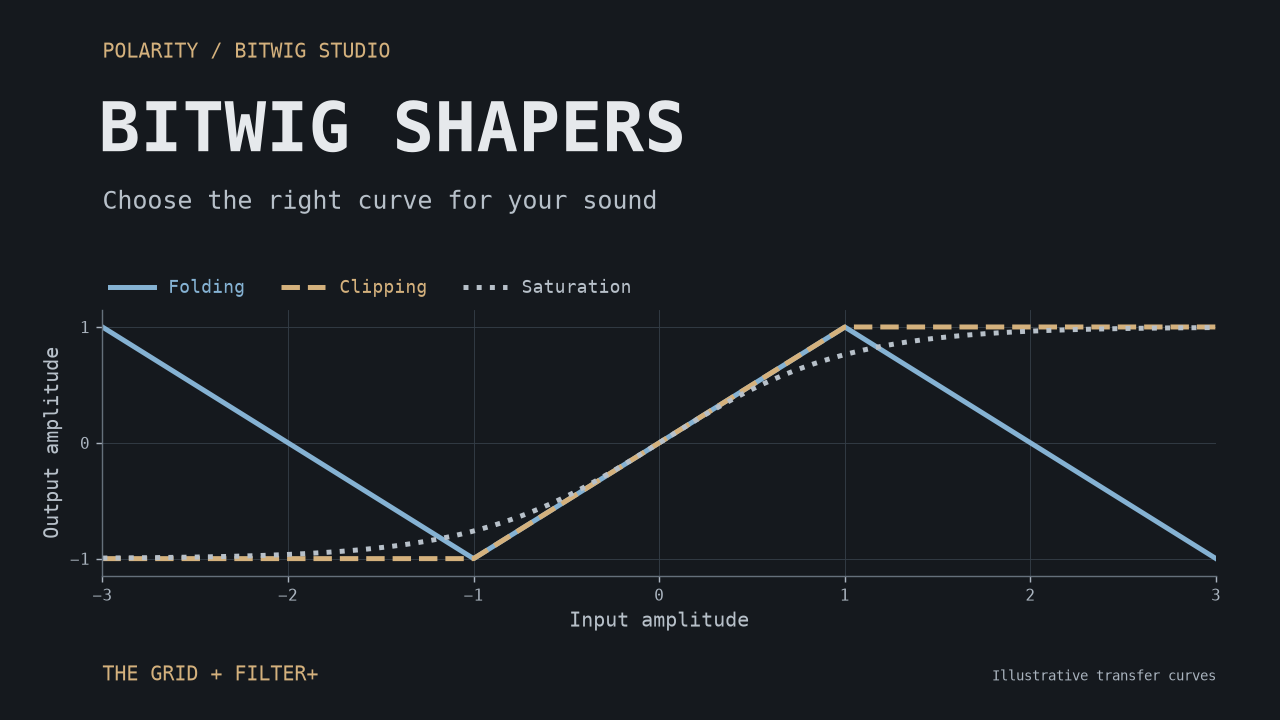
By drawing a flat top or bottom onto the curve, I can emulate hard clipping where the waveform is abruptly limited, producing a "clipped" characteristic sound. A rounded or softened corner replicates soft clipping, for more harmonic-rich but less aggressive saturation.
DC Offset #
If I lift or lower the center point of the curve vertically, I impose a DC offset, this means the output now has a static, offset value. This can be used creatively, but is generally something to avoid in many general audio contexts.
Custom Distortions #
The real excitement comes from drawing arbitrary shapes, producing unique, complex distortions that go far beyond classic saturation or distortion circuits. Adjusting the drive in conjunction with these custom curves can make results even more dynamic and varied.
Comparison to Other Devices #
Bitwig’s standard Saturator device offers some similar functions via a simpler, less flexible transfer curve, with limited control over the curve’s shape and knee behavior. While the Saturator is excellent for basic, musical overdrive and soft clipping, the Transfer module is exceptional for designing wild, intricate, and highly specific distortion and waveshaping effects thanks to its freeform curve editor.
Practical Experimentation #
Resetting the curve returns the transfer function to default (linear). Bringing in audio and manipulating the curve in real-time demonstrates dramatic effects on the resultant signal, often turning simple waveforms into raw, harmonically dense signals.
Conclusion #
The Transfer module in Bitwig Studio v5 is a versatile, creative powerhouse for anyone interested in sound design, custom distortion, and waveshaping, whether for subtle signal coloration or radical transformations. Drawing my own curves, tweaking drive and anti-aliasing, and running signals through bespoke transformation paths, I unlock unique textures and tailor-made effects not otherwise possible with traditional saturation tools. This makes the Transfer module both inspirational and essential for modern modular music-making and sound manipulation.
Full Video Transcription #
This is what im talking about in this video. The text is transcribed by Whisper, so it might not be perfect. If you find any mistakes, please let me know.
You can also click on the timestamps to jump to the right part of the video, which should be helpful.
Click to expand Transcription
[00:00:00] The transfer is a freely drawable segmented wave shaper module for the BitBig version
[00:00:06] 5 grid and it features here an audio input, a transfer function in the middle we can edit
[00:00:13] and an audio output and you can of course use this for all kinds of signals.
[00:00:18] It's not limited to audio just as a disclaimer, but it's the main focus is basically on audio
[00:00:24] rate signals, then we have here a folder symbol where we can load up some custom shapes,
[00:00:30] some predefined shapes, an anti-alising feature which brings in basically steps in between
[00:00:39] steps, as when you have like a stepped audio signal or you introduce a lot of small little
[00:00:46] steps to your audio signal then you can smooth this out here with anti-alising.
[00:00:52] Then we have a drive knob of course and that's basically an input gain and yeah we can change
[00:00:59] the amplitude of the input signal and drive the signal more or less into the transfer
[00:01:06] function.
[00:01:07] So that's basically it and we have here an LFO running through a transfer function as
[00:01:13] you can see it's a sine wave and you can see the transfer function is basically on this
[00:01:19] in its shape which is a diagonal line going from the left bottom to the top right and
[00:01:27] in this state the input is the same as the output, you can see the sine wave here is
[00:01:34] going slowly over the transfer function and input is output, the input is equal output
[00:01:42] and now we can draw in here certain points, maybe leave this here in the middle and force
[00:01:48] the sine wave onto different paths or maybe put in here a dot and move this over there
[00:01:56] or maybe do something like this or pull this down and you can see now the top here gets
[00:02:04] shaved off or clipped off, it's basically a hard clip shape here but only for the top
[00:02:10] part for the positive part right, we can also do this here on the lower part something
[00:02:15] like this, so we basically made now a hard clip device and you can change here with the
[00:02:22] input knob how much you want to drive the sine wave into the clipper and if you pull
[00:02:28] out here the gain or pull down the gain, you can see we never reach basically here this
[00:02:33] shaped part right, so it stays a sine wave until we increase the input gain until you
[00:02:43] reach basically here our shape we just drawn in, so we force here at the edge the sine
[00:02:51] wave onto a different path and that's why it's called wave shaper because you shape
[00:02:57] the waveform and you can do all kinds of crazy things here with this wave shaper, it's kind
[00:03:06] of similar to a saturator here, something we had before but here we have basically also
[00:03:12] a transfer curve but we don't have that much influence on the curve itself, we only have
[00:03:18] here certain things we can change the knee, maybe make this hard, change here the curve,
[00:03:25] you can see we can also draw in here a hard clip shape but we don't have that much freedom
[00:03:31] like we have in the transfer curve, if you just want to bring in some kind of smooth
[00:03:38] saturation something like this here right where you have a rounded edge and top and
[00:03:42] the bottom, you can do this too here just kill this or pull this up here and make it round
[00:03:53] something like this, this is a soft clip basically, if you only want to do this then you can probably
[00:04:00] also just use saturator, so this one here is more for crazy shapes where we bring in a
[00:04:07] lot of points and draw crazy shapes, something like this and you force basically the sine
[00:04:16] wave here onto a different path and you get these crazy shapes out of it, so that's basically
[00:04:21] what the wave shaper does and by changing at the input you get even more crazy outputs
[00:04:28] right and it's perfect for distortion to create your own distortion devices, so let's delete
[00:04:37] this here and go to this one, so here we have an audio input, an audio output, maybe reset
[00:04:43] the curve and show you how the sound sounds before we use the transfer curve and you pull
[00:04:56] this up to 8, keep the middle point here, if you move this up here from the middle we
[00:05:03] have basically a constant output, as you can see here right, because we offset basically,
[00:05:10] it's basically DC offset, so let's bring in here two points, I'll do something like this
[00:05:26] and now you have basically your own custom distortion device
[00:05:45] Yeah, that's the transfer function, so it's nice for distortion to create
[00:06:14] your own distortion devices and come up with some interesting ideas how to shape audio signals
[00:06:20] or signals in general.
[00:06:21] [BLANK_AUDIO]