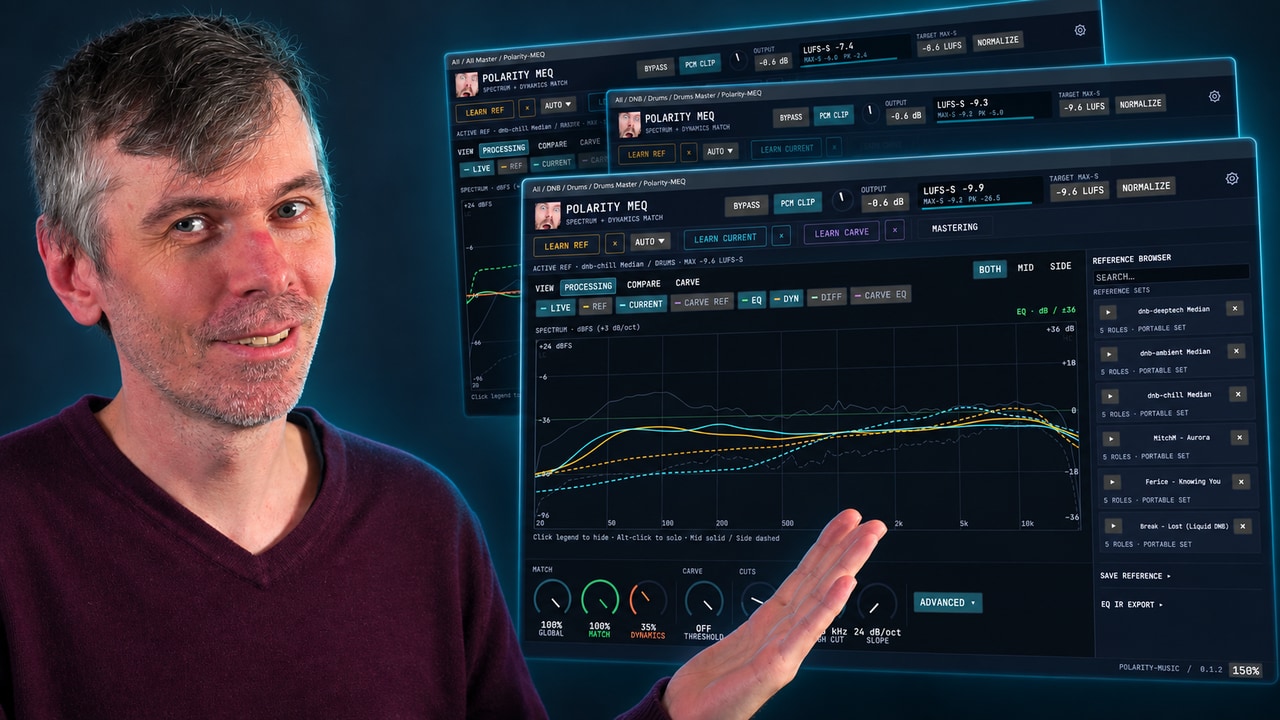
Polarity SC Update: Curve Matching and Threshold Presets
Tutorial | Mai 22, 2026
Learn how Polarity SC spectral compressor uses threshold curve presets, curve matching, and a corrected pink-noise analyzer to tame resonances fast.
- You can watch the Video on Youtube
- Polarity-SC Download & Website
- Support me on Patreon if you like what you hear.
- Download Presets, Tools and Projects on my Dispenser
Quick Answer #
- Polarity SC is a free, open-source spectral compressor/suppressor for Windows, macOS, and Linux, currently available as VST3 and CLAP plugins; AU is not available yet.
- The new update adds threshold curve presets such as equal loudness, drum bus, master bus, and bass bus, so useful spectral compression shapes can be loaded quickly.
- It now supports custom threshold curves: draw or paint a curve, save it as a preset, reload it later, and delete custom presets when no longer needed.
- A new Match feature analyzes incoming audio for about 5 seconds and creates an average frequency curve from the material, helping suppress resonances without broadly changing the track’s overall EQ balance.
- The analyzer was updated to be more accurate and easier to read: pink noise now displays as a straight line, threshold slope values now show real dB-per-octave values, and the UI includes tooltips plus a more compact layout.
Short Overview #
Polarity SC is a free, open-source spectral compressor and spectral suppressor for Windows, macOS, and Linux, available in VST3 and CLAP formats. It matters in practice because spectral dynamics processing can control resonances and harsh peaks more precisely than broad EQ, helping keep tonal balance intact while reducing unstable or overly dynamic frequency content.
The latest update adds threshold curve presets, savable custom curves, and a curve-matching function that captures the average spectrum of incoming material for more transparent suppression. It also improves analyzer calibration so pink noise displays as a straight line and threshold values reflect real dB-per-octave behavior, making setup clearer and results easier to trust in mixing and bus processing.
Key Takeaways #
- Polarity SC is a free, open-source spectral compressor / spectral suppressor available on Windows, macOS, and Linux as VST3 and CLAP only; AU is not planned in the next few months due to implementation complexity.
- The update adds predefined threshold curve presets for common use cases, including equal loudness, drum bus, master bus, and bass bus, so the threshold shape can be loaded quickly instead of drawn manually.
- Users can now draw custom threshold curves and save, reload, reuse, or delete them as presets directly from the preset menu.
- A new Match function listens for about five seconds and generates a threshold curve from the average frequency content of the current material, which can then be saved as a reusable preset.
- A practical workflow is to match the source spectrum first, then set compression to act only slightly above that matched curve, which helps suppress dynamic resonances or peaky outliers without broadly reshaping the EQ balance.
- The analyzer has been corrected so pink noise displays as a straight line, aligning the visualization with tools like FabFilter Pro-Q, instead of showing the previous slight tilt.
- The threshold slope and related controls now display absolute values, with 3 dB per octave shown as the true straight-line pink-noise reference; the threshold center / rotation point defines the frequency where the global threshold is anchored.
- In sidechain compression mode, the default visual/threshold reference switches to a white-noise-style tilted display, which is presented as more suitable for sidechain tasks such as kick-to-bass interaction; the tilt can still be adjusted manually.
Polarity SC update: presets, curve matching, and improved analyzer behavior #
Polarity SC is a free, open-source spectral compressor and spectral suppressor. It runs on Windows, macOS, and Linux, and is currently available in VST3 and CLAP formats. AU support is not currently planned in the near term because of the implementation overhead.
This update adds several workflow-focused features around threshold curves, improves analyzer behavior, and refines parts of the interface.
What it does #
Polarity SC works as a spectral dynamics processor. Instead of compressing the whole signal with one broadband detector, it analyzes the signal across frequency bands and suppresses or compresses energy selectively by frequency. In practice, this makes it useful for taming resonances, controlling harsh or peaky content, and shaping dynamic spectral balance without relying entirely on static EQ.
A key part of that workflow is the threshold curve: a frequency-dependent threshold that determines where compression or suppression begins across the spectrum.
New features #
Threshold curve presets #
The plugin now includes predefined threshold curve presets for common use cases, including:
- Equal loudness curve
- Drum bus
- Master bus
- Bass bus
These presets provide starting points for different material types and can be used immediately without manually drawing a curve.
Custom curve presets #
User-drawn threshold curves can now be saved and recalled as presets. This makes it possible to:
- draw or paint a custom threshold shape
- save it for later use
- reload it on other tracks or sessions
- delete presets that are no longer needed
This is especially useful when a particular threshold profile works well across similar sources.
Curve matching #
A new Match function analyzes the current material for about five seconds and builds an averaged frequency curve from the measured bins. That resulting curve can then be used as a threshold reference and saved as a preset.
This helps when the goal is not to EQ the source into a different tonal balance, but to preserve its overall spectrum while controlling only excessive or unstable peaks. In that workflow, the matched curve acts as a baseline, and compression can be applied only to energy that rises above it.
How it works #
Matching the source spectrum #
Curve matching measures the average spectral distribution of the incoming audio and turns it into a threshold shape. This can be useful because spectral suppressors often start acting like dynamic EQ when gain reduction becomes heavy. That may be desirable sometimes, but not always.
With a matched threshold curve, the processor can be set up to:
- follow the existing spectral average of the source
- suppress only dynamic outliers above that average
- retain the overall tone more naturally
This is a practical way to tame resonances or excessive peaks while keeping the source close to its original balance.
Threshold center and slope #
The update also clarifies how threshold controls behave.
- Threshold center is the anchor frequency for the global threshold value.
- Threshold slope defines how the threshold tilts across the spectrum, expressed in dB per octave.
The interface now displays these values as real, absolute values rather than offset-style values. A straight line in the current pink-noise-oriented view corresponds to 3 dB per octave, which aligns with common expectations for spectral displays.
Improved analyzer behavior #
One of the most important technical changes is the analyzer calibration.
Previously, feeding pink noise into the plugin produced a slightly tilted display. That behavior has been corrected. The analyzer now shows pink noise as a straight line, which aligns more closely with the visual conventions used in many modern EQ and analyzer plugins.
This matters because pink noise is often used as a perceptual reference in audio tools. A display that renders pink noise as flat is generally easier to interpret for tonal balance work.
The update also changes the background bin display so that the visual scaling reflects real values more clearly.
Pink noise and white noise behavior #
The plugin now defaults to a pink-noise-oriented presentation for its main spectral view, where:
- pink noise appears flat
- white noise appears tilted
This is intentional and generally more useful for mixing-oriented analysis.
However, in sidechain compression mode, the display switches to a white-noise-oriented tilt by default. That may be more practical for some sidechain applications, such as kick-to-bass interaction. The tilt can still be changed manually if needed.
Workflow #
A typical workflow with the new features looks like this:
- Load Polarity SC on a track or bus.
- Start with a predefined threshold curve preset if the source fits a common category such as drums, bass, or master bus.
- Alternatively, press Match to capture the average spectrum of the current material.
- Use the resulting curve as the baseline threshold.
- Apply compression or suppression so that only material exceeding that line is reduced.
- Save the resulting custom curve if it is useful for reuse on similar sources.
This makes the plugin more practical both as a quick-start tool and as a more deliberate spectral control device.
Interface refinements #
The update also includes several UI improvements:
- a more compact layout
- tooltips and parameter help overlays
- FFT window controls arranged in a single row
- clearer presentation of technical parameters such as analysis resolution and FFT settings
These changes do not alter the core function of the plugin, but they make the interface less cluttered and easier to interpret, especially for settings that many users adjust only occasionally.
Practical uses #
These additions make Polarity SC easier to use in several scenarios:
- Resonance control: suppress narrow, dynamically excessive frequency content without imposing a strong static EQ curve
- Bus shaping: use predefined threshold curves for drum, bass, or master material
- Material-adaptive control: match the source spectrum and compress only peaks above its own average balance
- Preset-based workflows: build and reuse curve libraries for recurring source types
Limits #
Current plugin format support is limited to:
- VST3
- CLAP
AU is not currently available.
The update focuses on threshold curve handling, analyzer calibration, and interface clarity. No other major processing changes are described beyond those display and workflow improvements.
Summary #
This Polarity SC update makes the plugin easier to deploy in real sessions and more predictable to read visually. The key additions are:
- predefined threshold curve presets
- saveable custom threshold curves
- spectrum-based curve matching
- corrected analyzer behavior for pink noise
- clearer value representation for slope and threshold controls
- small but useful UI cleanup
Together, these changes make Polarity SC more practical as a spectral taming tool that can preserve tonal balance while controlling dynamic frequency build-up.
Transcript #
This is the transcript of the video. The text was generated automatically and may contain small mistakes. The timestamps jump to the matching part of the video.
Click to expand transcript
[00:00:00] So this plugin has some new features I want to show you in this video, but before I start
[00:00:06] I give you a quick overview.
[00:00:08] So polarity SC is a spectral compressor or a spectral suppressor, which is completely
[00:00:16] free, open source, it works on all platforms, Windows, Mac OS, Linux, and is available as
[00:00:22] a VSE 3 and clap plugin.
[00:00:25] Some people want AU, but it's not something I can implement in the next few months or
[00:00:29] so.
[00:00:30] It's a heavy task.
[00:00:31] Okay.
[00:00:32] So only VSE 3 and clap at the moment.
[00:00:34] So before we dive in into the new features, I want to give you a quick overview.
[00:00:38] What's new?
[00:00:39] So we have now threshold curve presets, predefined ones, equal loudness curve, something for drum
[00:00:46] bus, something for the master bus, something for the bass bus and so on.
[00:00:50] Some predefined threshold curves here, right?
[00:00:54] Then we have custom curves you can save now as a preset so you can paint in or draw your
[00:00:59] own threshold curve, save it, reload it and reuse it.
[00:01:04] So some people wanted that.
[00:01:06] Then we have curve matching.
[00:01:09] We have now a button here called match and you can press the button and then it figures
[00:01:13] out after five seconds what the frequency curve is of the current material and then
[00:01:19] you have a new curve and you can save the curve, reload the curve, reuse it and so on.
[00:01:25] Then we have a clearer analyzer before we had like, when we played pink noise into the
[00:01:30] plug in, we had like a slightly tilted visual of these bins here and this is not, you know,
[00:01:39] this is not up to, I would say, industry standard.
[00:01:42] If you open up a Pro-Q4 and you play pink noise into it, it's a straight line on the
[00:01:48] visualizer.
[00:01:49] So I corrected that.
[00:01:50] So now it's a straight line for pink noise and also here these sliders represent the
[00:01:57] real value.
[00:01:59] Before that it was an offset.
[00:02:00] Now it shows you a 3 dB bar octave so it's an absolute value.
[00:02:04] It shows you exactly what you dialed in with the tilt setting for the threshold and also
[00:02:10] here some tooltips and some more compact layout for some of the sliders.
[00:02:18] So this is what I changed, the link to this website here is in the description below.
[00:02:22] You can just press download here or watch the video again and download here all binaries
[00:02:30] or go to GitHub or whatever you want to do it.
[00:02:33] Okay.
[00:02:34] So this is the quick overview and I want to show you how this looks like in Bitwig here.
[00:02:38] So here we have already a track loaded.
[00:02:43] Sounds like this.
[00:02:44] And you can choose for instance something like equal loudness curve then compress it or choose
[00:03:01] something different - drum bars, bass bars, smoothing, clear that.
[00:03:20] So this is the preset, predefined presets.
[00:03:25] We can also now hit here let's say match and then it says matching curve and then it gives
[00:03:30] you after five seconds an average of each of these bins here as a curve, as a frequency
[00:03:37] curve and this is very helpful if you don't want to EQ your tracks because sometimes if
[00:03:44] you use these resonance suppressors a lot or with heavy gain reduction you're almost
[00:03:51] or mostly EQing so you change the EQ or the overall spectrum which is not always what
[00:03:57] you want.
[00:03:58] Because sometimes just want to suppress some resonances.
[00:04:02] So with this you can figure out what's my frequency average at the moment and then say
[00:04:09] slightly downward compress everything that goes over this line.
[00:04:14] So you can only suppress very heavy dynamic material or peaky outliers going over the threshold
[00:04:25] and then you can bring it back.
[00:04:27] So we can tame more or less or exactly tame that's usually what you want to do with these
[00:04:33] kind of tools to tame your frequencies and bring everything down to a normal state I
[00:04:40] would say.
[00:04:41] Okay, so this is the curve we can also clear this here.
[00:04:45] We can maybe do match again just for the lows and then say this is my frequency curve and
[00:04:54] you can save this here let's say custom preset or maybe what's the name of this startup I
[00:05:02] think this track name let's call the startup save and then you have here a new entry inside
[00:05:08] of the preset box that you can use in other tracks or whatever.
[00:05:14] So this is not the end I have more ideas for this type of stuff for these curves here there's
[00:05:20] a lot of more features I want to implement but I give you the state of the plug in right
[00:05:25] now so you can try it out and give me feedback on some of the features before I implement
[00:05:30] a lot of things right and just not overwhelm everyone.
[00:05:38] Okay so this is the curve preset we have predefined ones like I said and also custom curves you
[00:05:44] can define here which is nice to have.
[00:05:47] You can also delete this stuff so for instance this one here I made this earlier hit delete
[00:05:52] then it's gone also this one I want to delete nice clear okay.
[00:05:59] So that's that smoothing is also still in from the last time I showed you this in the
[00:06:06] last video and I want to give you also here an idea of these sliders which are also new
[00:06:13] so you can see here this is the rotation point which gives you some kind of tool tip or overlay
[00:06:19] or help pop up however you want to call it threshold center is this frequency where the
[00:06:25] global threshold value is anchored which means if you turn this here right this is the anchor
[00:06:31] point and also this here the threshold slope shows you the real value so at the moment
[00:06:38] here it's a straight line which means it's 3 dB per octave before that in the original
[00:06:44] one let's call up this one it looks like this we have here threshold slope 0 dB per octave
[00:06:58] which is not true it's actually pink noise in the pink noise mode which means this line
[00:07:03] represents actually 3 dB per octave which is yeah pink noise so I want to show you this
[00:07:09] here with a test tone device that's called as a pink noise so you can see in the original
[00:07:19] one we have a slightly tilted visual which is not cool and here in this new update we
[00:07:26] have a straight line for pink noise which is whatever we plug in does right now if you open
[00:07:32] up the pre-prue Q4 for instance it also shows you a straight line for pink noise and there's
[00:07:44] a girl I think the pink noise of test tone is slightly it's not not you know standardized
[00:07:50] but you can see it's almost a straight line you can change this of course the tilt setting
[00:07:55] here in this plug-in but most people I would say keep it on 3 dB per octave maybe they
[00:08:01] change it for 4.5 dB per octave or 40 dB per octave they have more like a warm sound but
[00:08:07] usually it's 3 dB per octave so here in pink noise it's 3 dB per octave also here but here
[00:08:16] now it shows it that right and like I said in the beginning also change the visuals here
[00:08:22] for the bins in the background when we bring in here white noise it looks now tilted and
[00:08:30] here it's straight line so no one wants to mix with white noise I would say so it's much
[00:08:35] easier having this here slightly tilted for or adjusted for pink noise in my opinion a
[00:08:42] problem is when you switch this now to side chain compression it goes to this tilted setting
[00:08:50] here which is white noise which is probably better for yeah side chaining for instance
[00:08:58] kick with the bass or something like this so it's here tilted you can change this of
[00:09:03] course if you want to but the default state is white noise threshold curve here it's also
[00:09:10] different here it's a straight line so this is the difference between the original one
[00:09:15] and my new update I think mine is better or it's more what you expect from how these type
[00:09:23] of things work and it aligns better with what you see in other plugins so this is why I
[00:09:29] did it also here this is so white you can't even look at it anymore so white yeah so this
[00:09:40] is the difference and nothing else changed beside that I just made it more compact you
[00:09:46] can see also FFT window here is now in one row and it gets these kind of tooltips when
[00:09:52] you hover over these values to see what's going on because this is a very technical
[00:09:58] parameter it's not something you need to change all the time and you don't need to know what's
[00:10:03] going on there you can change the resolution of course for the bins how many bins you analyze
[00:10:09] and so on but most people probably don't change this too much they maybe go to four or change
[00:10:17] between two and four so I made this on one row so it's not cluttering up here the interface
[00:10:23] too much okay so this is what's new it's available right now on the website like I said let me
[00:10:31] know what you think what you experience if you have problems with this stuff download
[00:10:36] this here click the download button head over here and download the binaries and yeah that's
[00:10:43] that's the update for today and of course let me know what you want to have what you want
[00:10:47] to see as features I have a lot of features already noted from the last videos but still
[00:10:53] people come up with new stuff I know it you know it we all know it okay so that's it thanks
[00:11:00] for watching and I'll see you in the next video I would say next week see ya and have
[00:11:05] Have a great weekend!