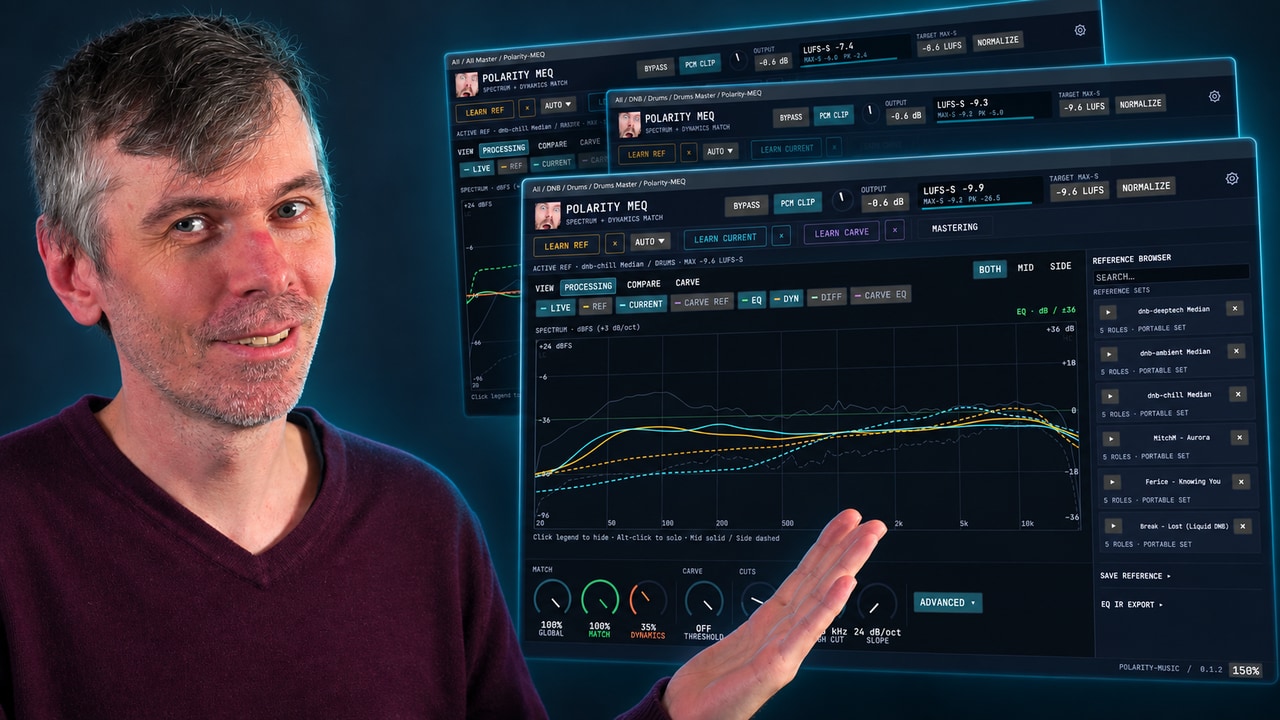
Polarity SC Spectral Compressor Update Fixes Mix and Adds Smoothing
Tutorial | Mai 01, 2026
Download the updated Polarity SC spectral compressor to fix dry/wet output gain, add smoothing and custom spectral curves, and control harshness.
- You can watch the Video on Youtube
- Polarity-SC Download & Website
- Support me on Patreon if you like what you hear.
- Download Presets, Tools and Projects on my Dispenser
Quick Answer #
- The update is for Polarity’s free cross-platform spectral compressor, available at polarity.productions/polarity-sc, with fixes and new controls for more usable dry/wet blending and smoother spectral compression.
- Output gain now works correctly with the Mix control: loudness can be compensated with the Output Gain slider or Match button, then blended between dry and processed signal without the old level mismatch problem.
- A new Smoothing control reduces harshness from per-bin gain reduction: it groups multiple spectral bins together, making strong top-end compression or expansion sound less brittle.
- The plugin now includes frequency guides and drawable custom curves: markers like 30 Hz, 100 Hz, 1 kHz help navigation, and clickable control points let users shape where spectral gain reduction/expansion happens, similar to a dynamic spectral EQ.
- Custom curves affect both downward and upward compression, and more updates are planned: no separate curve system for each mode yet, but future patches are expected, including bug fixes and an optional pink-noise-style visual tilt.
Short Overview #
Polarity Spectral Compressor has been updated with practical workflow improvements for dynamic spectral shaping across Windows, macOS, and Linux. The revised version fixes output gain behavior when using the mix control, making parallel processing and loudness matching more reliable in real-world compression and spectral balancing tasks.
New additions include spectral smoothing to reduce harsh bin-by-bin gain reduction, frequency guides for faster visual targeting, and editable curve points for custom dynamic EQ-style compression and gating. These changes make the free plugin more precise for controlling problem areas, shaping tonal balance, and experimenting with upward or downward spectral dynamics.
Key Takeaways #
- The output gain behavior was fixed so gain compensation now works properly with the Mix control; users can apply gain reduction, enable Match to align input/output loudness, and then blend dry and wet signals without the dry path being incorrectly affected.
- Match automatically compensates loudness by matching the output signal to the input signal, making A/B comparison and wet/dry balancing easier after compression.
- A new Smoothing control reduces harshness caused by heavy gain reduction on individual spectral bins by grouping multiple bins together instead of processing each bin too sharply.
- Smoothing applies to both downward and upward compression modes, helping make aggressive spectral processing sound less brittle in the high end.
- The frequency display now includes visual guides at reference points such as 30 Hz, 100 Hz, and 1 kHz, making it easier to identify where processing is happening in the spectrum.
- The graph now supports editable control points: clicking adds dots to draw custom spectral gain-reduction curves, allowing targeted dynamic processing in specific frequency areas, similar to a spectral EQ.
- Right-click removes control points, and the custom curve can be combined with Delta mode and Slope settings for effects such as spectral gating or frequency-weighted dynamic shaping.
- Current limitation: there is one shared curve for both upward and downward compression; separate custom curves for each mode are not implemented yet.
Updated Polarity Spectral Compressor: New Features and Workflow #
A revised version of the free Polarity spectral compressor is now available for Windows, macOS, and Linux. The update focuses on usability, more flexible spectral shaping, and better control over how compression is applied across the frequency spectrum.
The plugin remains a spectral compressor, meaning it applies compression across many narrow frequency bins rather than treating the entire signal as a single broadband source. This makes it possible to target problem areas in the spectrum with much greater precision.
What It Does #
The plugin can apply both downward and upward spectral compression.
- Downward compression reduces levels when parts of the spectrum exceed the threshold.
- Upward compression raises lower-level content, again on a per-bin basis.
Because processing happens across individual spectral bins, the result can behave somewhat like a dynamic spectral EQ, especially when used with the new curve editing controls.
Output Gain and Mix Behavior #
One of the main issues in the previous version was the way output gain interacted with the dry signal. That created problems when using the Mix control to blend processed and unprocessed audio.
This has now been corrected.
When gain reduction lowers overall loudness, compensation can be handled in two ways:
- Output Gain can be adjusted manually.
- Match can be enabled to match the output loudness to the input loudness.
With loudness compensated, the Mix slider becomes much more practical. It can now be used to fade between:
- the fully dry, unprocessed signal
- the fully processed signal
A 50% mix can produce a parallel-style result. In many cases, a similar effect can also be achieved by using 100% wet processing and lowering the compression ratio.
Smoothing for Harsher Spectral Reduction #
A new Smoothing control has been added.
Heavy gain reduction on individual spectral bins can produce a harsh or brittle sound, especially in the high frequencies. Smoothing addresses this by combining neighboring bins, reducing the jaggedness of bin-by-bin gain changes.
In practical terms, this means:
- less aggressive top-end artifacts
- more coherent spectral compression
- more natural behavior when large amounts of reduction are applied
The same idea also applies when using upward compression.
Frequency Guides in the Display #
The spectral display now includes basic frequency guides, such as:
- 30 Hz
- 100 Hz
- 1 kHz
These markers make it easier to understand where activity is happening in the spectrum and help when shaping or troubleshooting specific frequency regions.
Editable Spectral Curves #
A major addition in the new version is direct curve editing in the graph.
By clicking in the display, control points can be created to shape how gain reduction is distributed across the spectrum. Multiple points can be added to build custom curves.
This makes it possible to:
- reduce only the top end
- emphasize or de-emphasize selected frequency regions
- shape compression behavior in a way that resembles an EQ
- create dynamic spectral EQ-style processing
Points can be removed with a right-click.
Because the plugin also includes Delta monitoring, these custom curves can be used in more experimental ways, including spectral gating-style effects where only the removed or affected material is auditioned.
Interaction With Slope and Upward Compression #
The custom curve also works in combination with the plugin’s Slope behavior.
At present, there is only one shared curve for both downward and upward compression. If an offset is introduced for the upward compression curve, it still uses the same underlying shape. Separate curve editing for upward and downward modes is not currently implemented.
For many workflows, the shared-curve approach is sufficient, but it is a current limitation of the design.
Workflow #
A typical workflow looks like this:
- Apply spectral compression until the desired gain reduction is reached.
- Use Output Gain or Match to compensate for lost loudness.
- Blend dry and wet signals with the Mix slider if parallel processing is desired.
- Add Smoothing if the reduction sounds too sharp or grainy.
- Use the graph to draw custom spectral curves for more selective control.
- Optionally monitor with Delta to hear what is being removed or isolated.
This supports both corrective and creative use cases.
Practical Uses #
The new controls expand the plugin beyond simple spectral compression. Useful applications include:
- taming harsh high-frequency buildup
- selectively controlling resonant or overactive spectral regions
- creating dynamic EQ-like responses
- parallel spectral compression via the Mix control
- spectral gating or subtraction-style effects with Delta monitoring
- shaping broadband material with custom compression contours
Limits and Known Issues #
The current release may still contain bugs, and additional patches are expected.
One planned improvement concerns the display tilt. At the moment, the visual response follows a flat-per-octave presentation more like white noise. A future update may tilt the display so that pink noise appears as a straight line, which is a common convention in many audio tools and can make spectral balance easier to interpret.
Other fixes and refinements are also expected in later updates.
Availability #
The updated plugin is available now as a free download for:
- Windows
- macOS
- Linux
It can be found at:
polarity.productions/polarity-sc
Transcript #
This is the transcript of the video. The text was generated automatically and may contain small mistakes. The timestamps jump to the matching part of the video.
Click to expand transcript
[00:00:00] So welcome back on this Friday. I want to give you an update on polarity as see my modified version of the spectral compressor
[00:00:08] which is still free to use works on all platforms and
[00:00:12] Yeah, I added some features to it, which I want to show you in this video
[00:00:17] So the first big problem from the last version was that the output gain was applied to
[00:00:25] The dry signal and some people wanted to use of course the mix slider here, so I can show you this
[00:00:32] When we apply here some gain reduction
[00:00:35] So if you like this, of course the whole
[00:00:38] Volume or gain goes down the loudness goes down
[00:00:42] So we have to compensate for this and you use the output gain slider or you use the match button
[00:00:47] So you press on match and matches the input signal to the output signal in terms of loudness
[00:00:53] and now you can use here the slider and
[00:00:56] Fade between the dry signal completely unprocessed and the whole process signal here and you go and go to my
[00:01:04] I don't know 50% if you want to do that
[00:01:06] Or you just go 100% and reduce the ratio
[00:01:09] It's just more or less the same thing
[00:01:12] and yeah, this is kind of fixed in the new version and
[00:01:16] Yeah, it was a big problem
[00:01:19] Also, I added
[00:01:21] smoothing
[00:01:22] So you can see here when you have a lot of
[00:01:24] Gain reduction on individual bins. It can result in a harsh sound
[00:01:31] So we have now this smoothing slider here. You can see
[00:01:36] instead of having individual bins we
[00:01:39] combine multiple bins into one and
[00:01:42] Yeah, it's not that harsh anymore in the top end when you have a lot of gain reduction there
[00:01:49] So you can use smoothing now for this type of stuff
[00:01:52] So there's also a new feature in the new version and it also works of course here if you have upwards compression
[00:01:59] It does the same thing, right?
[00:02:01] Okay, so this is new then we have also now
[00:02:10] included here
[00:02:12] In this area you can see we have guides we have 30 Hertz 100 Hertz 1k and so on this was also a problem for some people
[00:02:20] Because they didn't know where is you know what frequency what's going on
[00:02:25] So I added here these kind of small little guides. We have a rough estimation where something is
[00:02:30] That's also new we also have now here inside of this graph you can just click and you can create the these kind of dots and
[00:02:40] You can create kind of custom curves to the gain reduction
[00:02:45] So if you just want to you know remove something in the top end here you can
[00:02:51] use just that
[00:02:54] you can create as many as you as you want and
[00:02:57] Yeah, I can try and fill out certain things
[00:03:01] It almost works like an EQ a spectral EQ with some gain reduction and then dynamic spectral EQ
[00:03:08] Or you can create your curves here for whatever you want. So I don't know
[00:03:13] This is also interesting in combination of course with the Delta, right? So you have like a spectral gate
[00:03:19] You can do something like this here
[00:03:24] Right-click removes the dots by the way, so if you want to remove something
[00:03:39] And also if you combine this here with a slope this also kind of works
[00:03:45] There's only one curve for both upwards and downwards when you bring in here an offset to the upwards compression curve, right?
[00:03:57] It's the same thing. So there's no individual curves for upwards and downwards. This is not implemented
[00:04:03] I don't know if if anyone needs this but
[00:04:07] For my taste it's enough, right?
[00:04:09] So yeah, the curve is applied to both downwards and upwards compressors
[00:04:14] also smoothing
[00:04:17] It's kind of nice to use already
[00:04:21] So yeah, this is this is new in the current version
[00:04:26] it's live at the moment on my web page so you can go to
[00:04:32] polarity dot production slash polarity sc and then you had over here to download and you can download those for Windows Mac OS and Linux
[00:04:39] There are probably still some bugs. I haven't tested this
[00:04:42] Massively yesterday, but yeah, there are some future patches coming for sure
[00:04:50] There's also something I want to do with the in terms of tilt
[00:04:58] So when you have your pink noise, right? The frequency curve is kind of
[00:05:02] Yeah, white noise. Is it white noise? Yeah, it's basically zero dB bar octave a slope here
[00:05:09] I want to have that you have a straight line for pink noise. So I want to tilt the whole
[00:05:14] visuals here to the left
[00:05:17] Because I'm kind of like it. I'm used to it and all the other plugins
[00:05:21] So want to also apply this in the future and also some bug fixes, of course
[00:05:26] Also coming soon. So that's it a very short video. Sorry for that. Today is my birthday
[00:05:32] I want to give you this this information you can head over to the web page
[00:05:38] Just download this give me some feedback and yeah, have some fun with this. Okay. Thanks for watching