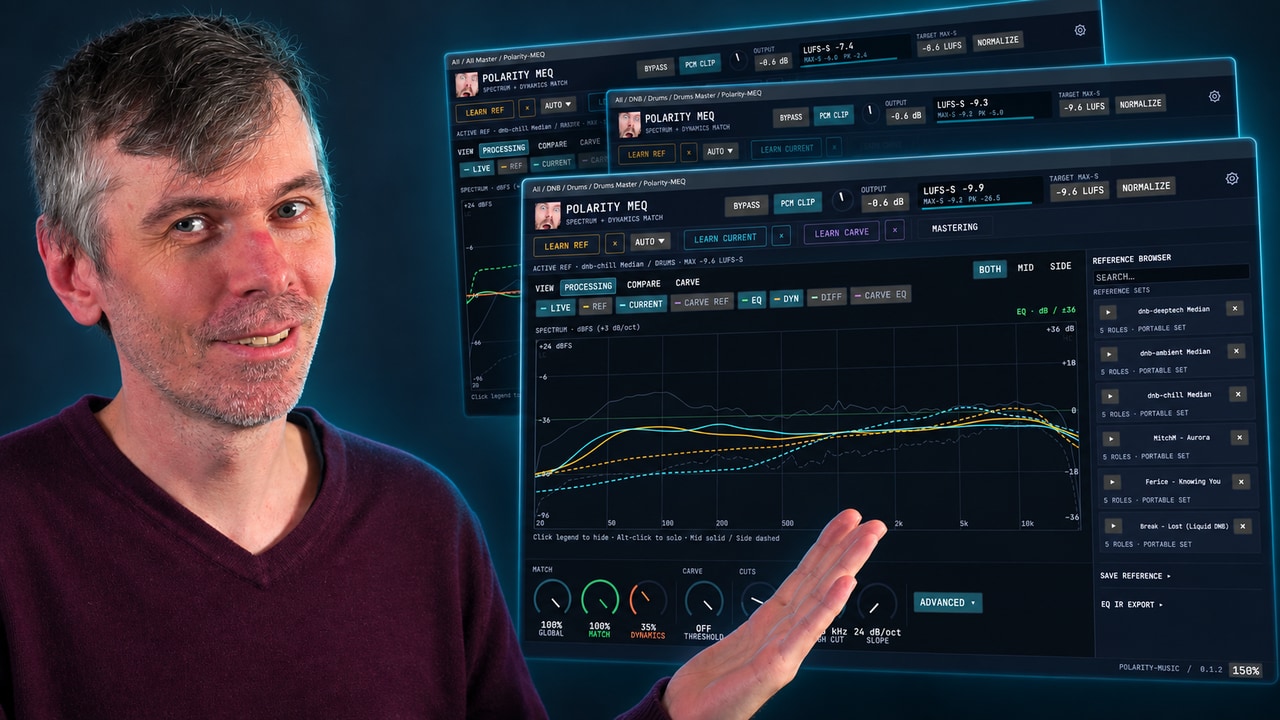
MMatcher Match-EQ - Consistency & Safety in your Mixes
Tutorial | Jan 21, 2026
The Melda MMatcher EQ plugin is a powerful tool for achieving consistent frequency balance across tracks by allowing you to create and use custom reference curves, including separate processing for mid and side channels. It excels at quickly identifying mix issues and ensuring a uniform sound, especially when working with albums or EPs. The plugin can be applied not just on masters but also on individual buses like drums or bass, and you can create more reliable reference curves by averaging multiple tracks, with advanced features for fine-tuning and analyzing by stem if desired.
You can watch the Video on Youtube
- support me on Patreon
- MMatcher by Melda
Short Overview #
I use Melda's MMatcher EQ plugin to achieve consistency and clarity across my mixes and masters. It helps me match both mid and side channels to custom reference curves, which I create using multiple tracks for a more balanced result. The plugin not only speeds up my workflow but also instantly highlights mistakes in my frequency spectrum, giving me a clear direction for further adjustments. It's a valuable tool for keeping my releases sounding cohesive and professional.
- Introduction to MMatcher by Melda as a top EQ matching tool
- Reference curves and presets: options for guitars, headphones, mastering, and custom curves
- Custom target curves: importance of creating your own over using single tracks or factory presets
- Mid/side processing: unique ability to separately EQ mid and side channels for stereo control
- Consistency across tracks: ensures a uniform frequency balance and stereo image in albums, EPs, or multiple releases
- Quick error detection: visually identify major mix and master issues using real-time spectrum matching
- Workflow tips: analyze only key sections (not full tracks) for effective matching
- Smoothing and reference curve blend: use multiple reference tracks and adjust smoothness for musical EQ curves
- Average vs Max: selecting between measuring average or peaks in frequency response
- Practical usage: amount knob controls blend between matched and original EQ, keep-level option for gain staging
- Advanced controls: frequency range restriction, latency/phase options, channel-specific matching, and quality settings
- Use cases: matching on master, buses (drums, bass), and even individual stems for precise, contextual corrections
- Reference curve creation: batch analysis and averaging across multiple stems, preferable to single-track analysis
- Stem separation workflow: using tools like Ultimate Vocal Remover to isolate drums, bass, or other elements for reference extraction
- Caution about dynamics: EQ matching alone cannot replicate dynamic range, which is crucial for sound matching
- Inverse EQ and subtraction: use inverse analysis to avoid frequency overlap between buses
- Comparison to other tools: static matching with Spectrum Thief vs. dynamic live correction from plugins like Soothe or Gullfoss
- Summary: MMatcher as an essential tool for consistent, reference-based mastering and mixing, beyond simple EQ adjustments
Introduction: Why I Use MMatcher by Melda as My Go-To EQ Plug-In #
In this video, I'm taking a deep dive into the MMatcher EQ plug-in from Melda, which I currently consider the best available matching EQ tool. Someone recently asked me to go into detail about how and why I use this plug-in, so I want to share my workflow, explain core features, and discuss why it has become a staple in my music production process.
The Power of Reference Curves and Presets #
One of the main reasons I love MMatcher is the browser area on the left side, where you can select and manage reference curves. The plug-in ships with a variety of useful presets covering everything from headphone correction curves and guitar preamps, to detailed master target curves for different genres. Despite this, I mostly create and use my own target curves based on my personal needs and preferences, and later in this summary I’ll explain how I create those.
Mid and Side Channel EQ Matching #
Another key reason this plug-in is so powerful is its ability to EQ match not only the mid channel but also the side channel (the side information in your stereo field). This dual processing is significant because it lets me shape and control the stereo field with precision, making mixes sound wider or tighter as needed, and keeping tracks balanced.
Why Use a Matching EQ Instead of Manual EQ? #
For years, I EQed everything manually. The switch to matching EQ wasn't out of laziness but a desire for consistency. When releasing multiple tracks, albums, or EPs, matching EQ helps maintain the same frequency distribution, dynamics, loudness, and stereo width across all tracks. This prevents situations where one track in a project sounds drastically different from the rest, providing a more cohesive listening experience.
Matching EQs also make it easy to spot big mistakes quickly. When I apply a reference curve and see a large compensation in one frequency area, I instantly know there might be an issue like a high-passed bass or a mix element not cutting through. This visual feedback acts as a safety net for my mix decisions.
How I Use MMatcher in My Workflow #
Choosing and Creating Reference Curves #
On my master bus, I often use a custom reference curve based on an average of multiple tracks in the genre or vibe I’m going for, not just one song, since using a single song can mislead the EQ if the key and fundamental frequencies differ from my current track. I prefer to create smooth target curves from diverse tracks, including different scales and bass notes, for more reliable overall matching.
The Analysis and Correction Process #
I usually analyze a section of my track with the core elements (bass, drums, pad sounds) active, then let MMatcher generate a correction curve compared to my reference. This process analyzes both mid and side channels, offering a detailed look at balance and frequency distribution.
Manual Tuning and Mix Bus Use #
After applying the correction, I might adjust certain frequency areas manually. For example, if a 200 Hz boost is suggested, I’ll assess if it makes sense for the mix. If the bass needs more warmth, I might boost 200 Hz just on the bass bus instead of the entire master, avoiding global changes that could harm other elements.
Dry/Wet (Amount), Smoothness, and Analysis Modes #
- Amount Knob: This controls the intensity of the matching, typically set below 100 percent to avoid overprocessing.
- Smoothness: Higher settings create broader, genre-appropriate EQ shapes, while lower settings work for surgical matching.
- Average vs. Max: Allows you to focus the correction on averages over time or on momentary frequency peaks, enabling precise control depending on mix goals.
Advanced Settings Explained #
- Keep Level: Maintains consistent output gain when large EQ adjustments are made, so your processed track stays volume-matched to the input.
- Processing Latency and Phase: You can toggle between minimum and linear phase modes. Linear phase introduces more latency but prevents phase alteration, a trade-off I rarely find necessary, but some users might.
- Frequency Range Limiting: It’s possible to restrict matching to specific bands, such as ignoring sub-bass or extreme highs if they aren’t relevant for your target sound.
Applying MMatcher Not Just to the Master but to Busses and Stems #
Besides mastering, MMatcher is a powerful tool on subgroup busses. I create separate reference curves for drums, bass, and even pads by analyzing various sample packs or isolated instrument stems. You can get creative, for example:
- EQ-matching just the drum bus to a series of favorite drum loops for genre consistency
- Creating a pink noise reference curve for drums if you want a flatter, more controlled drum spectrum
This approach helps maintain consistency within individual mix sections, leading to more polished and coherent mixes.
How to Create Reference Curves From Folders and Multiple Files #
I often use the folder analysis function in MMatcher to create more accurate reference curves. By analyzing a folder with multiple drum loops, basslines, or full tracks, MMatcher averages their frequency response and produces a composite target curve.
- Average vs. Median Analysis: If you analyze fewer than ten sources, use the average mode. For larger sets, median mode helps prevent outlier files from skewing results. Median analysis gives a more balanced curve when working with many items that may vary widely in spectral profile.
You can save these as custom presets, making them easily reusable for future projects.
Using Stem Separation Tools to Enhance Reference Quality #
To go further, I sometimes use AI-powered stem separation software like Ultimate Vocal Remover, which can split songs into drums, bass, and other elements. With this, I can analyze only the drums or bass from a track/album I admire, gaining focused reference curves for those mix elements. This technique works particularly well for genres where the drum or bass sound is a signature element and has to hit just right.
The Limitations: The Role of Dynamics #
One major point about all matching EQ plug-ins, including MMatcher, is that they only analyze static spectral content. They do not account for dynamics. This means, for example, that you cannot make a dynamic, punchy snare sound like a heavily compressed one just by EQ matching, they will always differ due to transient shaping and compression. Always keep this in mind, especially when referencing highly processed material.
Other Matching EQ Tools and Alternatives #
While MMatcher is my main tool, I sometimes use open-source solutions like Spectrum Thief, especially when I only need static EQ matching and do not require features like mid-side separation or extensive preset management. Spectrum Thief is simple and free but does not offer mid/side matching or advanced analysis options.
Conclusion #
MMatcher is my tool of choice for creating mix and master consistency, for fast error detection, and for guiding my EQ moves whether on the master or subgroups. It offers detailed reference management, solid analysis of both mid and side channels, customizable matching ranges and modes, and an intuitive workflow for saving and reusing reference curves. While not a substitute for nuanced dynamic control or mix experience, it accelerates transparent, consistent mixing and mastering outcomes, making it a cornerstone of my production process.
Full Video Transcription #
This is what im talking about in this video. The text is transcribed by Whisper, so it might not be perfect. If you find any mistakes, please let me know.
You can also click on the timestamps to jump to the right part of the video, which should be helpful.
Click to expand Transcription
[00:00:00] This is the best EQ measure that you can get at the moment, M measure by Melda.
[00:00:06] And I haven't made a video about this yet, but someone asked me under the last
[00:00:10] video if I can do some kind of deep dive into this plugin and show you how I
[00:00:16] use it, why I use it and how it works.
[00:00:19] And the first reason why I like this plugin is that you have on the left side
[00:00:23] here a big browser where you can select your reference curve.
[00:00:28] And you already get here a lot of presets, some factory presets with the
[00:00:32] plugin, guitar preamps, headphones, correction curves, and master target
[00:00:38] curves for all kinds of genres and music pieces.
[00:00:42] And to be honest, I don't use any of these.
[00:00:45] I use my own target curves or reference curves.
[00:00:48] And I also want to show you how I create these kind of curves here.
[00:00:53] Later on the video, of course.
[00:00:56] So the second reason why I like this plug in is that you EQ not only the mid
[00:01:02] channel, you also EQ and match the side channel or the side information, right?
[00:01:08] And it's really important for me because you can control your stereo
[00:01:15] field with this pretty nicely.
[00:01:17] So the big question is now, why do I use a measure plug in in the first place?
[00:01:23] Why not just manually EQ your master?
[00:01:27] And that's exactly what I did for many, many years.
[00:01:30] But the problem is not that I'm lazy or anything like this.
[00:01:35] It's more like consistency.
[00:01:37] I like consistency.
[00:01:39] So if you have multiple tracks, release stuff on Bandcamp or you have
[00:01:43] an album or an EP or whatever, and you want to keep the same frequency
[00:01:50] distribution across all tracks, the same kind of loudness, dynamics, stereo
[00:01:55] field and so on, it sounds really weird.
[00:01:58] If you have you come, you listen to one track and then you listen to the other
[00:02:02] track and it sounds completely different, the completely different stereo
[00:02:06] field, a completely different frequency distribution, right?
[00:02:09] So this is why I use this.
[00:02:11] I want to have consistencies or consistency between my music pieces in general.
[00:02:18] I really like to have this and that's why I use it.
[00:02:22] And the second reason why I use matching EQs is that it allows me
[00:02:26] to see big mistakes, big errors, pretty fast if you apply something
[00:02:31] like this here on the master and you analyze your input and then it tries
[00:02:37] to apply some kind of correction curve.
[00:02:39] You can see a big bump in the middle or down here or here, right?
[00:02:43] You know instantly, oh, something is wrong.
[00:02:46] Maybe the bass is actually high-passed or the drums are not cutting through
[00:02:51] or something like this, right?
[00:02:52] Or the pads are too quiet or, you know, some big mistake.
[00:02:56] You can see it instantaneously here on this graph when it tries
[00:03:00] to compensate in certain frequencies area and certain frequency areas.
[00:03:04] So this is why I use it consistency and just safety and allowing me
[00:03:10] to have some kind of information about what's going on on my master.
[00:03:17] What's going on in my music?
[00:03:18] What's going on?
[00:03:19] That's the big question I have.
[00:03:21] So let's put it to use in the background here.
[00:03:24] You can see a track already.
[00:03:26] And on the master I have here this MMatcher plug-in instance.
[00:03:30] Nothing is happening.
[00:03:31] I just selected here some kind of reference curve.
[00:03:34] And I want to go here for German bass, deep roll on our average preset.
[00:03:40] That's my own preset here, compiled from multiple tracks.
[00:03:44] It's not just one single track.
[00:03:48] Usually, back in the days, I just use one track, but it's actually
[00:03:51] not really helping because you have this one track and this one track
[00:03:55] is in a certain key and the bass is on a certain key like F or G.
[00:04:00] And your track is like in D-sharp, of course.
[00:04:02] And you have a different bump here, right?
[00:04:05] So F is probably here and D-sharp is down here or something like this, right?
[00:04:10] And it tries to push the wrong frequencies for your track
[00:04:13] because you are on a different scale.
[00:04:15] So what I do usually is I use a lot of smoothness here.
[00:04:19] So I smooth out the EQ curve, right?
[00:04:23] So you have a rough guidance for the right direction.
[00:04:27] So it's not really trying to push one note at a time in the bass, for instance.
[00:04:32] And I use multiple tracks for reference, not just one track.
[00:04:39] And in an ideal world, you use maybe different tracks
[00:04:45] with different scales, different bass notes and so on.
[00:04:49] And then you get better and better results.
[00:04:51] OK, so let's put this here to use.
[00:04:54] I have a track and background.
[00:04:55] Nothing is going on at the moment.
[00:04:56] No processing is applied, so it play.
[00:04:59] Let's analyze this here.
[00:05:03] And you can see it collects a lot of information here
[00:05:08] from the side channel and also from the mid channel.
[00:05:11] Very important.
[00:05:12] And you can do this here for the whole track if you want to.
[00:05:23] But most of the times it's just OK to go to a certain area in your track
[00:05:30] where you have like the bass, the drums and the pad sounds playing
[00:05:32] and then just record this and call it a day.
[00:05:36] When you are done, you just hit the Analyze button again.
[00:05:39] And then it already applies here in Correction Curve
[00:05:43] because we selected here this reference curve,
[00:05:46] the drum bass deep roller preset and we analyze the input.
[00:05:49] So now it applies here Correction Curve.
[00:05:52] You can see it tries to push the frequencies on the side channel
[00:05:56] around 30 hertz a lot.
[00:05:58] And on the mid channel, nothing, not so much is going on.
[00:06:03] Maybe around 200 hertz, there's a push, 1K, there's a small push
[00:06:07] and also a 20K to bring out the high end a bit more.
[00:06:12] So that's what this EQ tries to do.
[00:06:15] We can also open up here the Advanced Settings.
[00:06:20] And you can see there is a button called Keep Level.
[00:06:22] If we use this, it kind of compensates here for the loudness.
[00:06:29] When you apply an EQ and you push a lot of frequencies,
[00:06:31] of course, the output is much higher than the input.
[00:06:35] And here you can compensate for this with this.
[00:06:38] We have a much better kind of, yeah, inside of what's going on with EQ.
[00:06:45] So we can use the Dry/Wet knob, which is actually not a Dry/Wet knob.
[00:06:49] It's actually an Amount knob because it scales the Correction Curve here
[00:06:55] from zero, so no processing to 100 percent.
[00:06:59] So let's listen to this.
[00:07:01] [Music]
[00:07:21] OK, so you can see it wants to, you know,
[00:07:24] EQ a lot of stuff out here around 700 hertz.
[00:07:28] It pushes a lot of frequencies here around what's the 40 hertz?
[00:07:34] 43 hertz F1.
[00:07:38] It's probably the bass frequency.
[00:07:41] So yeah, you can see what's going on and then maybe go to the different channels
[00:07:45] and boost certain frequencies with the manual EQ for yourself.
[00:07:50] So let's say you have here a boost around 200 hertz
[00:07:53] and you listen to your tune and you think, oh, well,
[00:07:56] actually, the bass is actually not warm enough or it's not, you know,
[00:08:00] not prominent enough in the mix.
[00:08:03] So you have options here.
[00:08:04] You can say, oh, I actually have some room here.
[00:08:07] Maybe let's boost only on the bass 200 hertz instead of on the master,
[00:08:12] where you push 200 hertz then on every sound on the drums,
[00:08:18] on the bass, on the pads, sounds equally.
[00:08:21] So you can go here then to the bass bus and just boost something
[00:08:25] around 200 hertz, and then you analyze your master again.
[00:08:30] And then maybe it's not boosting that much anymore here around this area.
[00:08:34] So you can use this more like an analyzer for your mix down
[00:08:39] or for your bus tracks, right?
[00:08:42] So we can act then on the bus track instead of applying a big,
[00:08:47] heavy EQ, a Q correction curve on the master itself.
[00:08:53] So yeah, so this is how I use it.
[00:08:55] We can also now here apply different other curves.
[00:08:58] But most of the times you the drum bass deep roller is my
[00:09:01] that's how I like to have my mix down, right?
[00:09:04] And most of the times I also don't dial in 100 percent.
[00:09:09] I also only go for 50 percent, maybe here on the dry, wet knob
[00:09:14] or on the amount knob.
[00:09:16] Then we have your smoothness.
[00:09:18] It's also important.
[00:09:20] I showed you this earlier.
[00:09:21] It just goes from very individual frequencies.
[00:09:25] That's that's maybe more interesting or smoothness.
[00:09:28] Zero percent is more interesting for if you want to clone, let's say,
[00:09:32] amplifiers where you have like really specific small little frequencies
[00:09:37] you want to correct or you want to apply.
[00:09:39] But for the master, you want to go at least for 10 percent, maybe more
[00:09:44] just to have a rough estimation of where you want to correct stuff.
[00:09:50] And then there's this knob here called average versus max.
[00:09:53] So when you analyze the reference curve and also the
[00:09:56] your track for the analyze part here for the input part,
[00:10:01] you measure the average.
[00:10:05] So it's a time window, maybe 300 milliseconds where you measure the loudness there.
[00:10:10] So you don't get every peak of frequency in the calculation
[00:10:16] versus max, which is the maximum, probably the maximum value,
[00:10:22] the maximum level of a certain frequency.
[00:10:25] So you can balance this out between the two.
[00:10:27] And you probably more want to go to average than to max.
[00:10:31] Maybe Max is interesting for club tunes.
[00:10:35] Well, I want to really peak with the frequencies at a certain level.
[00:10:39] So yeah, you can balance this out.
[00:10:42] And by the way, there's also a really nice help menu here
[00:10:45] that you can use.
[00:10:47] Wait a minute.
[00:10:49] So can't resize this.
[00:10:51] OK, so here in there, there's a lot of stuff you can read how this actually work.
[00:10:57] And I really recommend to do this here.
[00:11:00] Average versus max controls the ratio between two analyzed spectrums,
[00:11:05] infinite average and maximum from temporal average.
[00:11:09] They respond differently when the audio material is changing the spectral properties.
[00:11:15] So you have to figure out what's right for your music
[00:11:19] and then settle down to a certain not pure dead or certain not position
[00:11:24] that you want to apply then to all your tracks.
[00:11:27] It's not like you want to have this changing on all tracks
[00:11:32] because then you throw basically the consistency out of the window, I would say.
[00:11:36] Yeah, I have this on all my tracks on the same position.
[00:11:42] Smoothness is 10 percent.
[00:11:44] I think this is by default.
[00:11:46] This is the default value.
[00:11:47] Average versus max is 50 percent.
[00:11:50] Output is zero dry red is most of the time 50 percent.
[00:11:53] Then we have advanced settings.
[00:11:55] Key level. I showed you this.
[00:11:58] It just matches the output signal to the input signal.
[00:12:01] There's also here on the toolbar, there's an automatic gain control that you can set
[00:12:06] when you hit your set.
[00:12:07] It analyzes the input signal and then matches the output to the input.
[00:12:11] Also really helpful.
[00:12:13] We can switch off your midside.
[00:12:15] We also can use key level.
[00:12:17] We can switch your minimum face to linear face, probably.
[00:12:21] As we can see, the measure at the moment changes the face, which is not the big problem.
[00:12:28] It's not the problem at all.
[00:12:29] A lot of people make videos about it, why it's a problem.
[00:12:32] But for me, it's a non problem.
[00:12:34] You can see here on the left side in Bitwig, the processing latency is zero.
[00:12:41] But when we switch this here to this different mode, you can see now we have
[00:12:46] here a processing of 170 milliseconds of latency just for the mMatcher alone.
[00:12:54] Here, the benefit is that you don't touch the face if it's really important for you.
[00:13:01] But I would say you don't need it at all.
[00:13:04] Then you can change here if you want to
[00:13:09] use individual channels for reference, like the side channel and the mid channel separately.
[00:13:15] That's what I explained to you earlier.
[00:13:18] I really like this because no other matching EQ dust is so far as far I know.
[00:13:24] And also your input.
[00:13:27] Then we have here some range knobs so you can say or you want to cut out certain frequencies.
[00:13:33] So you match basically the whole spectrum, the whole frequency spectrum from 20 to 20 k.
[00:13:39] And you can say or just keep the base out, right?
[00:13:41] So make an high pass here by at 140 Hertz, for instance, and also keep the top end out, right?
[00:13:49] So you can only EQ stuff between between 146 Hertz and 2,580 Hertz.
[00:13:57] So you can remove certain frequencies from the equation.
[00:14:02] Really nice quality sliders on four most of the times.
[00:14:05] And yeah, you can also change it to smoothing.
[00:14:09] I don't know why they have so many options in these plugins.
[00:14:12] I have no idea.
[00:14:12] Most of the times you don't need it.
[00:14:14] But if you want to dive into this, you can change everything.
[00:14:18] It's really nice to have.
[00:14:20] So the MMatcher plugin is here on the master at the moment, on this master.
[00:14:25] And that's OK.
[00:14:28] But you can also use this on buses, on the drums bus or on the bass bus.
[00:14:32] So let's remove this here from the master for a moment and only go to the base or to the drums here.
[00:14:38] That sounds like this.
[00:14:40] And we can here just apply an MMatcher plug in.
[00:14:46] We can do the same things to the drums.
[00:14:48] We just analyze the drums a little bit.
[00:14:52] But there's not much happening here with the drums, so we can just stop it.
[00:14:57] And you can see here, it's already trying to apply a curve for a track.
[00:15:02] And for the track, it's not going to work because with the track, we have pad sounds
[00:15:07] and we have bass sounds, right?
[00:15:09] So it applies here a curve that's not helping at all.
[00:15:15] But we have here some reference curves for drums that I made myself, right?
[00:15:22] So here, drum based drums, GS median.
[00:15:25] Here, I analyzed a lot of drums from some sample libraries I like
[00:15:30] just to have the same kind of consistency.
[00:15:34] OK, I've also here, let's say, a pink noise curve.
[00:15:38] Stereo, 70 Hertz cut.
[00:15:42] So there's a low cut at 70 Hertz.
[00:15:44] It's mostly where most of my drums cut anyway.
[00:15:47] So there's nothing below 70 Hertz for me, most drums.
[00:15:51] So I can EQ the drum bus here to a pink noise curve.
[00:15:57] And again, I don't want to use 100 percent.
[00:16:09] I don't want to have pink noise, a real pink noise curve for my drums.
[00:16:13] I just want to go roughly in this direction.
[00:16:16] OK, that's the idea.
[00:16:18] And most of the times when I do this mixing, I did the mixing
[00:16:21] tutorial a few years ago about pink noise and a lot of people are so,
[00:16:27] you know, you don't need to use pink noise and pink noise is not ideal.
[00:16:31] And, you know, it's not the best curve to use.
[00:16:35] It's just it's just a reference.
[00:16:38] You want to go slightly or roughly in this direction.
[00:16:41] You don't want to go there 100 percent.
[00:16:43] It's not, you know, so you don't take it too seriously, what I say.
[00:16:50] OK, so here you can use pink noise as a reference.
[00:16:53] But most of the times I just use my drums here.
[00:16:57] And again, it's not like that I could not eq this by myself.
[00:17:00] It's more like for consistency.
[00:17:02] So I have roughly the same kind of sound or frequency distribution for the drums.
[00:17:08] Also, I have this here for the bass.
[00:17:10] It doesn't work in this case here, but yeah.
[00:17:12] And I show you then in a minute here how I do these kind of things,
[00:17:17] because it's also very interesting how this tool approaches this.
[00:17:20] So this is basically here the drum bus.
[00:17:23] Yeah, it takes stuff out and you can combine this then with the master, right?
[00:17:35] So if you have, for instance, a track that you like,
[00:17:39] what you can do then is use a stem separation tool with AI.
[00:17:44] So you separate the drums from the bass from the pad sounds.
[00:17:47] And then you have three different stems for each different track.
[00:17:51] And then you can analyze each stem, each track on the master.
[00:17:55] And then you combine everything.
[00:17:57] So you have like a master target and also the target for the buses,
[00:18:05] for the bass bus and for the drums pass and for the pads bus.
[00:18:09] And then you can combine everything here on the on the on these individual buses.
[00:18:14] And then on the master, you are already set more or less
[00:18:17] because this is everything of this is contained in this already.
[00:18:21] So you don't need to make a science out of this.
[00:18:25] I try basically everything I can just to see what's coming out.
[00:18:31] So I'm exploring this kind of idea, how far can I push this?
[00:18:35] If this is this is actually helpful, but you don't need to do this.
[00:18:40] If you just use a match on the master and you use a preset target, you're good.
[00:18:46] OK, this is just my kind of finish to go into this and try all kinds
[00:18:52] of possible ways and try out some weird ideas.
[00:18:57] So you don't need to do this.
[00:18:59] It's not something you need to do. OK, anyway, so these are the drums.
[00:19:03] You can also do this here on the bass bus.
[00:19:05] Let's listen to the bus to the bass bus here.
[00:19:10] Let's call matcher. Analyze it.
[00:19:15] And it also depends, of course, what kind of bass you have as a reference, right?
[00:19:27] So if you have a sub bass and you reference some kind of mid range
[00:19:32] in your funk bass, it's also not going to work.
[00:19:35] But you can walk around this.
[00:19:38] OK, so we have this.
[00:19:42] We compare this here to our bass preset.
[00:19:45] You can see there's a lot of stuff going on here.
[00:19:48] So it wants to push a lot of top end, which is not what I want to do
[00:19:54] because it's a very muffled bass. It's just a sub bass.
[00:19:58] So we can go into the advanced settings and just, you know,
[00:20:01] remove this here from the equation again and just call it a day.
[00:20:07] Keep level. You can see there's nothing left here.
[00:20:12] Actually, it wants to accuse some stuff around 50 Hertz,
[00:20:15] but it's probably because of the input material.
[00:20:19] Maybe use a bit of smoothing here.
[00:20:22] Just have some ref crafts in here.
[00:20:24] I tried to cue out stuff for the mids or the low mids of the kick drum, probably.
[00:20:30] So you can see what's happening.
[00:20:32] So it's also interesting for learning, for learn
[00:20:35] how to accuse certain things if you analyze a lot of different music, right?
[00:20:41] So, yeah, so this is now here, jumps in the base.
[00:20:44] And then you go back to the master and put another and measure on that.
[00:20:50] And then you analyze here again.
[00:20:53] The whole thing.
[00:20:57] So this is what you can do with this.
[00:21:00] And I show you in a minute how I actually created these reference
[00:21:05] curves because it's very easy. You can do this in multiple ways.
[00:21:09] Let's apply here the correction curve for a moment.
[00:21:13] That sounds a bit more defined.
[00:21:29] OK, so the reference curves.
[00:21:37] So I have some presets here already,
[00:21:39] but you can just hit the analyze part.
[00:21:41] So you put this maybe on a different track.
[00:21:45] So you import maybe a track you like on a different channel here.
[00:21:48] And then you hit analyze, and it does the same thing as before.
[00:21:52] But now it uses here this as a reference curve, as a target curve.
[00:21:57] Here, it doesn't really work because analyze the reference is the same as the input.
[00:22:03] So it doesn't make any sense.
[00:22:06] But you can just hit this button and analyze whatever comes into this plug in.
[00:22:10] And as I said before, you just import the track you really like.
[00:22:13] And then you have a new reference curve.
[00:22:16] But in my opinion, it's it's OK to do this.
[00:22:20] It's maybe more helpful for cloning amplifiers
[00:22:25] or single sound sources or stuff like this.
[00:22:28] What I do most of the time is I use this drop down menu here.
[00:22:34] I can see there is here analyze folder or average analyze
[00:22:39] loads or analyzes in selected folder and produces an average, right?
[00:22:44] So what you can do is you can just use here on folder.
[00:22:47] And you can see I have a lot of different folders with reference A, B compare stuff.
[00:22:52] So for instance, here I have 20, 25 drum base drums, right?
[00:22:59] So I have this folder and there's a lot of different sounds in there.
[00:23:03] Maybe you can look into this here, looks like this.
[00:23:07] So it's actually just drum loops from a sample pack
[00:23:11] or for multiple sample tracks I really like.
[00:23:13] So we just analyze this here and we get some kind of curve from this.
[00:23:20] Wait a minute here, it's actually.
[00:23:24] Analyze folder, drum base drums, OK.
[00:23:27] And then we can say output folder for the analyzes stuff, right?
[00:23:32] So you just make some kind of folder.
[00:23:36] I don't know, maybe do something here.
[00:23:39] Tutorial. Tutorial.
[00:23:42] It's OK.
[00:23:45] And we choose this hit OK.
[00:23:49] And then just brings in all the different samples or drum loops, as you can see here.
[00:23:55] And it creates individual curves from that only for the drums.
[00:24:01] And you can do this with every kind of song or stems or whatever you want to use for that.
[00:24:11] It takes a while.
[00:24:12] So now that we have this, we have now individual curves for each of these drum
[00:24:24] loops, which is OK, but we want to have all of them combined.
[00:24:28] We want to have an average from all of these samples.
[00:24:31] So what we can do now is we can go here to the drop down from the reference and say
[00:24:37] average analysis loads or analysis in selected folder and produces an average.
[00:24:43] This is OK, but there's another one here called average median.
[00:24:49] And the only difference you want to know for this for these two is that you want to use
[00:24:55] this average here for when you have below 10 tracks or 10 sound sources.
[00:25:02] You want to compare and you want to use average analysis median.
[00:25:06] You want to use when you have a lot of different tracks or stems.
[00:25:11] You want to compare.
[00:25:12] In our case here, we have a lot of different stems, at least 20 and median
[00:25:17] just calculates the average in a different way.
[00:25:21] I don't want to go deeper into this math because I don't understand it really,
[00:25:25] but it takes kind of a different approach.
[00:25:28] And when you use the normal average value, it's just taking all the values.
[00:25:33] Let's say you have 20 values and then it just adds all these values together.
[00:25:38] And then it divides it by the quantity, let's say 20, and then you get a value out of this.
[00:25:45] The problem with this is when you have like one source in there that has
[00:25:50] that's kind of have a big difference in there or has some weird frequency shapes in there.
[00:25:59] It kind of influences the whole average a lot.
[00:26:05] And with this year, it's not the case.
[00:26:07] It just takes every time the middle value.
[00:26:10] So each individual sound source doesn't have that much influence over the whole outcome.
[00:26:18] OK, I don't want to go deeper into this, but just use this
[00:26:21] if you have multiple or a lot of sources above 10 and use this if you have below 10 sources.
[00:26:28] So here we use median.
[00:26:29] I really like this.
[00:26:31] And it takes all of these things together, right?
[00:26:35] And it uses this to calculate the curve that we have here now at the moment.
[00:26:41] And then we can save this as a preset.
[00:26:46] Save, current thing, tutorial.
[00:26:50] And.
[00:26:54] Want to rewrite all the files.
[00:27:02] I don't know.
[00:27:04] Oh, I selected here something.
[00:27:06] OK, that's that's a problem.
[00:27:08] To Toriel.
[00:27:10] Yeah.
[00:27:11] OK, so now we have a preset here that basically combines all
[00:27:16] the drums from this folder as an average.
[00:27:20] So it's not like one single source.
[00:27:22] You have multiple sources.
[00:27:23] It's much better.
[00:27:24] And you can do this not only with drums.
[00:27:26] You can do this with complete songs.
[00:27:28] That's what you usually do.
[00:27:29] But I do it also for drums.
[00:27:31] And sometimes you can also do this for bass sounds.
[00:27:35] OK, and if you don't have bass sources,
[00:27:42] you can do something like this here.
[00:27:45] This is more or less an EP from an artist, right?
[00:27:49] Multiple tracks as wave files.
[00:27:51] I bought this from Bandcamp.
[00:27:53] And then I use a tool like Ultimate Vocal Remover.
[00:27:58] I show you this here.
[00:28:00] So this is more like a stem separation tool.
[00:28:04] I think it's open source.
[00:28:05] It's completely free.
[00:28:06] But the big benefit of this tool is that it has a lot, a lot of models
[00:28:12] you can use for separate certain stems.
[00:28:16] It's not just one big model for everything.
[00:28:19] You can use different methods here to separate stuff.
[00:28:23] And you select basically an input folder here, which is here.
[00:28:28] My EP I downloaded from Bandcamp.
[00:28:31] And then I select an output folder, which is then bass or drums.
[00:28:35] And you select all the stems you want.
[00:28:38] And what I use sometimes or most of the times is using this here.
[00:28:41] Sample mode, 30 seconds.
[00:28:44] So it's not processing the whole track, stem separating the whole track.
[00:28:48] It's just separating 30 seconds.
[00:28:51] But the big part is it's not using the beginning of the track.
[00:28:55] It's using the middle part where the meat is.
[00:28:58] So it's kind of intelligent in a way.
[00:29:01] So it's separating the meat of the track instead of the beginning.
[00:29:05] So you get like drums and bass from your music that we bought from Bandcamp, right?
[00:29:12] And you have some bass sounds here, maybe I hit play.
[00:29:16] So it's not really correct.
[00:29:22] There's also some some top end sounds in there, the drums sound like this.
[00:29:31] Also a problem here, sometimes the kick drum is not really recognized.
[00:29:36] It's combined with the sub sometimes.
[00:29:39] But you get a kind of feel for where all these sounds need to be on the buses.
[00:29:46] And how loud they need to be and what kind of frequency distributions they have.
[00:29:50] So you can analyze everything with these stem separation tools
[00:29:55] and then see where your stuff is, right?
[00:29:58] Where your drum bus is, what's happening on your bass bus?
[00:30:01] What's happening on the master?
[00:30:03] And then you combine everything and you can use this then
[00:30:06] in a metro plug in and just analyze and compare, learn, maybe apply the curve.
[00:30:17] Sometimes you just want to see what's going on.
[00:30:19] Where's the difference and then apply a manual EQ on the on the bus
[00:30:24] in a certain place on snares.
[00:30:26] You also can compare single sounds like snare sounds.
[00:30:29] Where is the snare sound hitting for this track?
[00:30:31] I really like what's going on there.
[00:30:33] Just analyze it, compare it to your snare sound and then you can see where it's lacking.
[00:30:39] One thing, one big piece is missing with these EQ matching plug ins all the time.
[00:30:46] And I don't know why it's not solved yet on the plug in market and that's dynamics.
[00:30:51] If you have a snare sound and the snare sound is completely dynamic,
[00:30:54] it was a big dynamic range.
[00:30:57] You can apply as many EQ curves you want.
[00:31:00] It will never sound like the original snare sound that is clipped out of your mind.
[00:31:08] You know, it's clipped to the max.
[00:31:11] So you need to keep in mind that the dynamic range is a big part of all of that.
[00:31:17] If you want to match tracks, if you want to match drum buses or buses or single sounds,
[00:31:24] the dynamic range, the situation plays a big part in this.
[00:31:29] So yeah, this is how I use a matcher here.
[00:31:32] I use it for the for the master.
[00:31:33] I use it for the buses.
[00:31:35] I use it for sounds.
[00:31:36] I use it for applying resonator curves or, you know, amplifier curves or cloning sounds,
[00:31:46] characteristics, stuff like this.
[00:31:48] Sometimes you can also apply the inverse thing, right?
[00:31:54] If you want to subtract something, you can also do this here.
[00:31:57] I can, I think there's something like reset, where is it?
[00:32:06] There's some kind of feature here where you can exchange basically the reference for
[00:32:11] the input and then the input is the reference.
[00:32:14] But I can't find it.
[00:32:16] Invert.
[00:32:17] Yeah, it's invert, inverse analysis.
[00:32:19] So it's doing the exact opposite.
[00:32:22] This is really helpful just to subtract something from something else.
[00:32:27] So let's say you analyze the drums and then you analyze the bass and then you can subtract
[00:32:32] basically the drums from the bass and then you EQ everything on the bass out that's
[00:32:36] happening in the drums or vice versa, instead of using something like Soothe or Spectral
[00:32:42] Compressor, which is also cool, but it doesn't live.
[00:32:46] So you have like always this dynamic place.
[00:32:49] And sometimes you won't have a static EQing stuff out.
[00:32:52] You can also do this here.
[00:32:54] But most of the times I do this not with Matcha, I use Spectrum Thief, which I also still use.
[00:33:03] This one here is completely free.
[00:33:05] And I think it's also open source if I'm not wrong.
[00:33:08] So you can do the same thing, but it lacks basically here the side or the mid processing
[00:33:15] and the separate side processing part besides that is also a cool thing.
[00:33:20] And also the presets are missing.
[00:33:22] So this is why I don't use this all the time.
[00:33:25] But sometimes or most of the times I want to have a static EQ stuff like Soothe or what's
[00:33:30] the name, Gullfoss or this EQ applies all this stuff live with a dynamic response, which
[00:33:40] I don't really want.
[00:33:44] Sometimes it's okay, but not all the time.
[00:33:47] Anyway, enough talk.
[00:33:49] Thanks for watching.
[00:33:50] I hope you get some nice information out of this video.
[00:33:53] Leave a like.
[00:33:54] If you like the video, subscribe to the channel, let me know what you think and I see you in
[00:33:57] the next video.
[00:33:58] Thanks for watching.
[00:33:59] Bye.
[00:33:59] [BLANK_AUDIO]